 SensorPulse
SensorPulse – User Manual
Complete step-by-step guide for absolute beginners
Version 2.12.0 · Windows 10/11 (64-bit)New in version 2.12.0: task manager performance details and improved overlay frametime graph.
1. Introduction – What is SensorPulse?
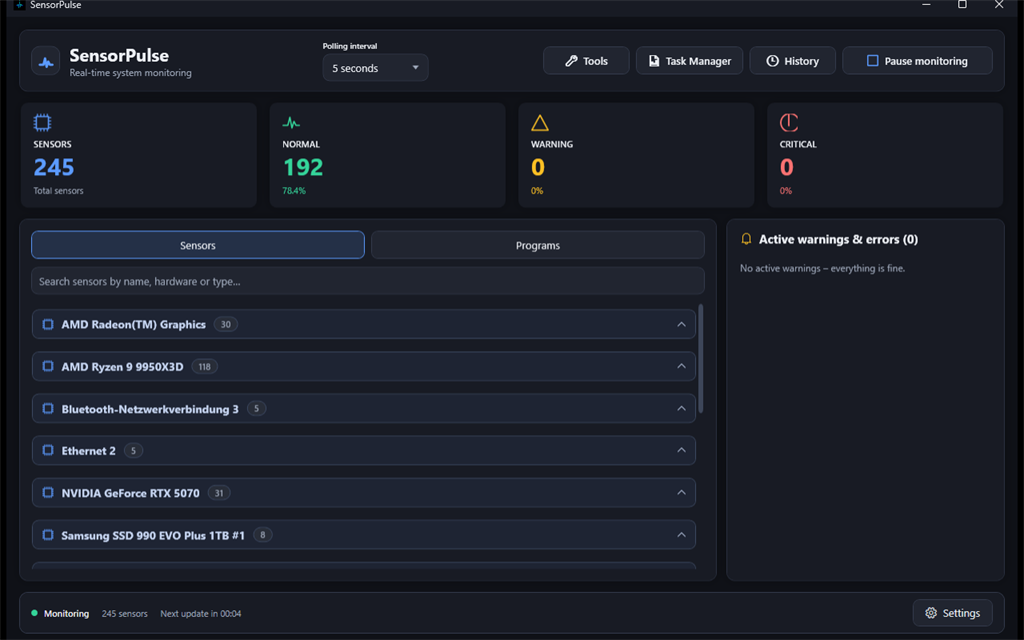
SensorPulse is a complete hardware monitoring suite for Windows 10 and 11. It reads sensor data from your PC – CPU temperature, GPU load, fan speed, disk usage, network adapters and more – and displays everything in clear tiles, charts and tables.
What SensorPulse can do
- Live dashboard with colored tiles, sparklines, favourites bar at top and hardware grouping
- History charts with zoom and detailed reading explanations
- Custom alarm thresholds, alert sidebar and alert history
- Tools Hub with fan control, GPU info, benchmark, export and more
- Built-in Task Manager with process actions and performance charts
- Transparent game overlay for CPU/GPU/FPS while gaming
- Program launcher for installed apps and games
- SQL Admin and automation (premium – license required)
Privacy – everything local, no cloud
SensorPulse runs entirely on your PC. There are no user accounts, no cloud sync and no telemetry to external servers. Readings are stored in a local SQLite database (sensordata.db) next to the application – only when you enable it in settings.
Free forever – no key required
SensorPulse (consumer) and Hub (up to 10 PCs, SQLite) are free forever from the first start – no trial, no license key. That includes SQL admin on the local SQLite database, automation, fan control, folder treemap, startup catalog, ICMP ping, benchmark and overlay.
SensorPulse Enterprise (€599 one-time, SPEL-ENT-599) is a separate product for businesses: unlimited devices, agent/server/console, SQL Server/Oracle, server tools and Prometheus /metrics. It is not unlocked via PayPal inside the consumer app.
2. Installation
SensorPulse is available in two variants. Choose the right method on the download page.
Option A: Online Setup (recommended)
- Open sensorpulse.de/download.html in your browser.
- Click “Download online setup”. The file is named
SensorPulse.Setup.exe(language matches the website). - Double-click the setup file. Windows may ask for confirmation – click Yes.
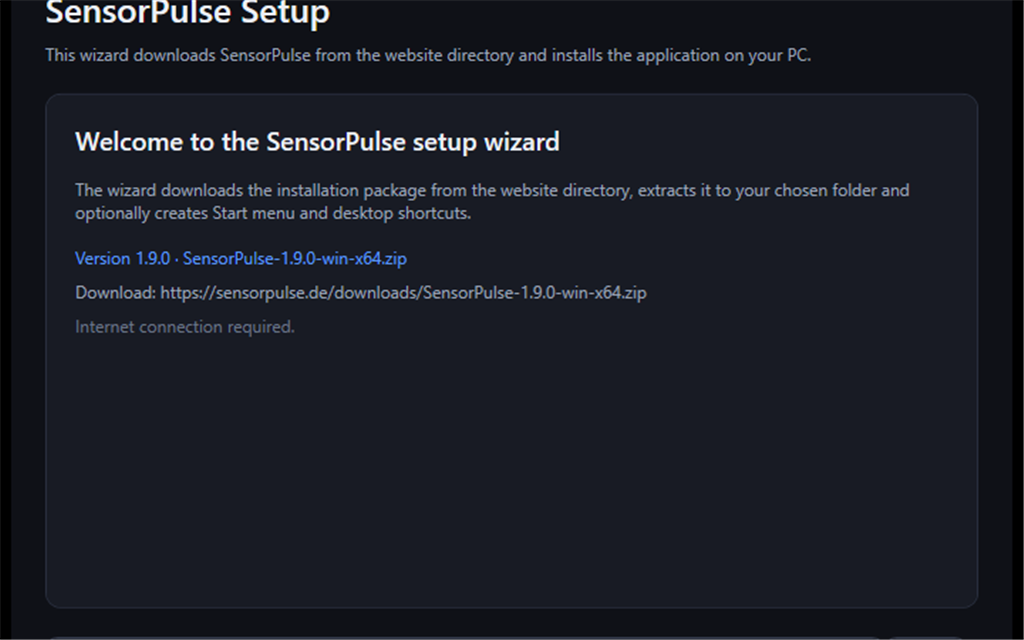
- The wizard starts and extracts the embedded application package. No internet is required during installation.
- Choose the destination folder (default is fine).
- Enable or disable desktop shortcut and Start menu entry as you prefer.
- Click Install and wait until “Finished” appears.
- Launch SensorPulse from the shortcut or Start menu.
Option B: Offline Setup
- Download the offline bundle (ZIP) from the download page.
- Extract the ZIP to a folder of your choice.
- Run the included
SensorPulse.Setup.Offline.exe. - Follow the wizard like the online install. No internet is needed – the application package is embedded in the setup EXE.
- Finish installation and start SensorPulse.
System requirements
- Windows 10 or 11, 64-bit
- .NET Framework 4.8 (usually pre-installed)
- About 50 MB free disk space
- WebView2 runtime included in the package (
runtimes\folder)
3. First Launch
On the very first start SensorPulse runs through several steps. This can take 10–30 seconds – please wait until the dashboard appears.
Step by step on first launch
- Start
SensorPulse.exewith a double-click. - A loading screen appears with progress: database, settings, license, hardware sensors.
- After loading you see a short welcome notice (e.g. “SensorPulse – free forever”). It disappears automatically.
- The main window opens on the Sensors tab with the first sensor tiles.
- Monitoring usually starts automatically. Values refresh every few seconds.
Understanding the license status
The status bar and License button show that the consumer app is free. You do not need a key. SensorPulse Enterprise is a separate download (SPEL key) for unlimited fleet monitoring.
Administrator rights
If few or no temperature sensors appear:
- Click Settings (gear icon) in the status bar.
- Click Run as administrator.
- Confirm the Windows UAC prompt with Yes.
- SensorPulse restarts with elevated rights. More sensors should now be visible.
PawnIO (optional, for AMD CPU sensors)
Direct CPU temperature reads on some AMD processors need the PawnIO driver. If SensorPulse reports this:
- Start SensorPulse as administrator (see above).
- The PawnIO installer may run automatically if bundled.
- Alternatively download PawnIO from pawnio.eu and install manually.
- Restart SensorPulse as administrator afterwards.
4. Main Dashboard
The dashboard is your central screen. Here you see all live sensor values at a glance.
Sensors tab
- Make sure the Sensors tab is active (next to Programs).
- The sensor list is grouped by hardware: CPU, GPU, motherboard, memory, storage, network, battery, etc.
- Groups are stacked vertically; tiles within a group are arranged side by side.
- Each group can be expanded or collapsed by clicking the group name.
Summary cards
At the top you see four cards: SENSORS, NORMAL, WARNING, CRITICAL.
- Click SENSORS to show all sensors (clear filter).
- Click NORMAL to show only green, OK sensors.
- Click WARNING to filter yellow sensors only.
- Click CRITICAL to show only red sensors.
- Click the same card again to clear the filter.
Search
- Click the search box “Filter sensors by name, hardware or type…” or press Ctrl+F.
- Type a term, e.g. “CPU” or “Temperature”.
- Only matching sensors are shown. Press Esc to clear the search.
Favorites
- Right-click a sensor tile.
- Choose Add to favorites.
- The sensor appears in the Favorites group at the top of the list – highlighted and independent of hardware grouping.
- To remove: right-click → Remove from favorites.
Groups and sparklines
- Groups: Sensors are sorted by hardware. Right-click a group header → Pause/Resume group monitoring (license required).
- Sparklines: The small curve under each value shows the last minute of the current session.
- Min/Max: Below the current value you see minimum and maximum since monitoring started.
- Colors: Green = normal, yellow = warning, red = critical.
Start and stop monitoring
- Top right: Start monitoring or Pause monitoring.
- Click to toggle live updates on or off.
- Shortcut: Ctrl+P.
- When paused, values freeze; the status bar shows “Paused”.
Other header buttons
- History – Opens charts (Ctrl+H)
- Tools – Opens the Tools Hub
- Task Manager – Opens the built-in Task Manager
- Refresh interval – How often values are read (0.5 s to 1 minute)
Sensor tiles – double-click and context menu
- Double-click a tile to open History for that sensor.
- Right-click for: open history, favorite, per-sensor pause, group pause – single-sensor pause is free; group pause requires a license.
5. Settings
All important options are under the Settings button in the bottom status bar.
Open and close settings
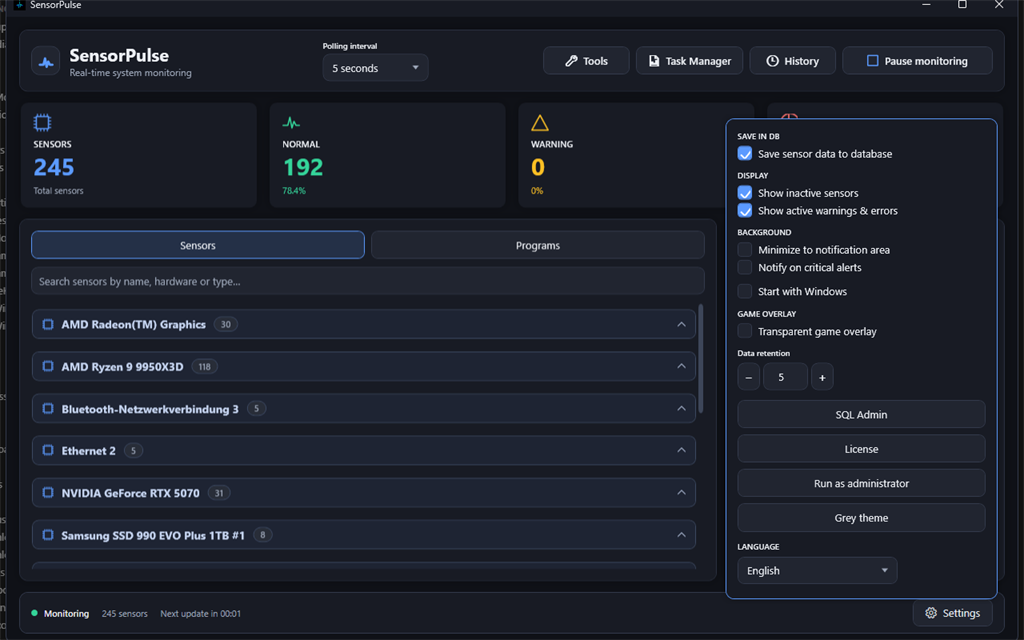
- Click Settings (gear) bottom left to open the settings window.
- Click Settings again to bring the window to the front.
- Close with Close in the window or Esc.
- Changes apply immediately and are saved to the local database.
SAVE TO DB
- Persist readings to sensordata.db – Enable to write measurements to the database. Off = live display only, no history storage.
- Data retention – Numeric field (1–3650 days) with − / + or direct input. Saved when you close settings and on exit. Only active when DB storage is enabled.
DISPLAY
- Show inactive sensors – Also shows sensors that only report zero (e.g. disconnected network adapters).
- Show active alerts and errors – Toggles the alert sidebar on the right.
BACKGROUND
- Minimize to notification area – Keeps running in the tray; tooltip shows CPU/GPU temperature when available.
- Slower refresh in background – Less frequent sensor polling when minimized – saves CPU on weaker PCs.
- Notify on critical alerts – Tray balloon when the window is hidden and a critical alert occurs.
- Start with Windows – Launches SensorPulse in the background after sign-in (system tray), without showing the main window. Monitoring still runs; double-click the tray icon to open the window.
GAME OVERLAY
- Enable Transparent game overlay to show CPU/GPU load, temperatures and FPS over all windows.
- The overlay is click-through and sits at the top right of the screen.
Hardware access
- Status badges show admin mode and PawnIO installation.
- Run as administrator – Restarts with elevated rights (UAC prompt) when not already elevated.
- Install PawnIO – Optional for more accurate CPU temperatures (when not yet installed).
Profiles, automation and management
- Monitoring profiles – Quiet, Gaming, Benchmark, Night or Custom: switches refresh, fans, overlay and engine mode.
- Automation – Alert sounds, Quiet profile on critical alerts, localhost sensor API and energy cost estimates.
- Export / import settings – JSON backup for thresholds, favourites, group states and profiles.
- Dark theme / Light theme – Switches between dark and light UI.
- Six languages (DE, EN, FR, ES, IT, PL) – Changes the entire UI language immediately.
- Language packs (F1 help)… – Install help for additional languages.
- License – Opens license activation.
- SQL Admin – Available only with an active license.
Note: Settings window size and position are saved when you close the window.
6. Programs Tab – Launcher for Apps and Games
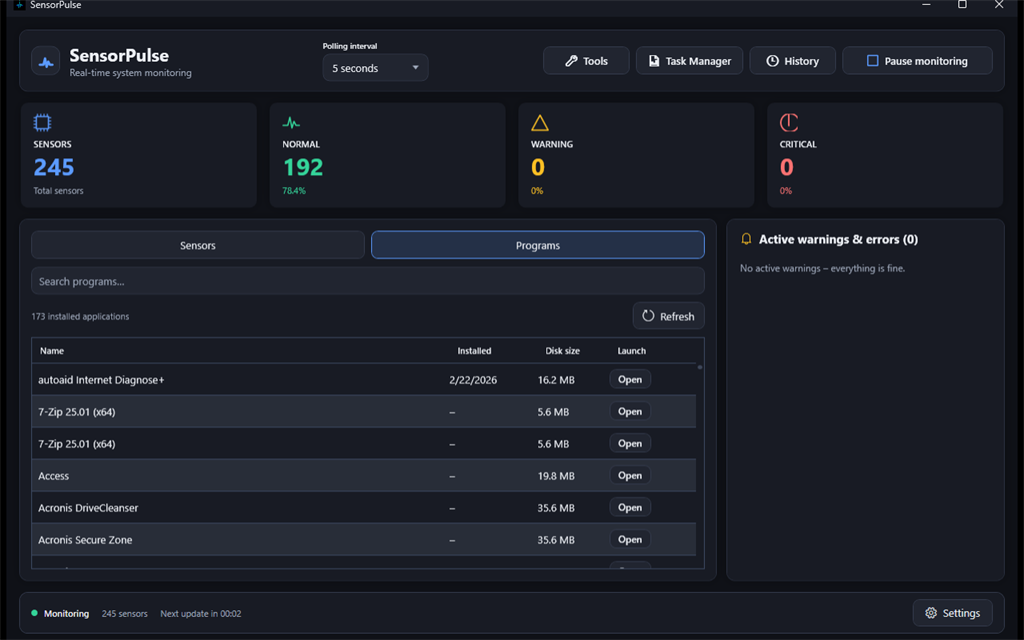
Next to the Sensors tab you find Programs. It lists installed applications from the Windows Start menu.
Load and view programs
- Click the Programs tab at the top.
- On first visit SensorPulse reads the Start menu (short load time).
- Programs appear grouped by Start menu folders (e.g. Games, Office, Tools).
- Columns: category, name, install date, disk size, type, launch button.
Launch a program
- Find the program in the list (use search if needed).
- Click the Launch button in the row or double-click the tile.
- The app starts via its shortcut (
.lnk).
Games and overlay auto-enable
- Programs in the “Games”, “Giochi” or “Spiele” folder are marked as Game.
- When you start a game, SensorPulse automatically enables the game overlay if it was off.
- The overlay shows CPU/GPU load, temperatures and FPS over the game.
Search and refresh
- Use the search box to filter the list.
- Click Refresh after installing new software.
7. History Window
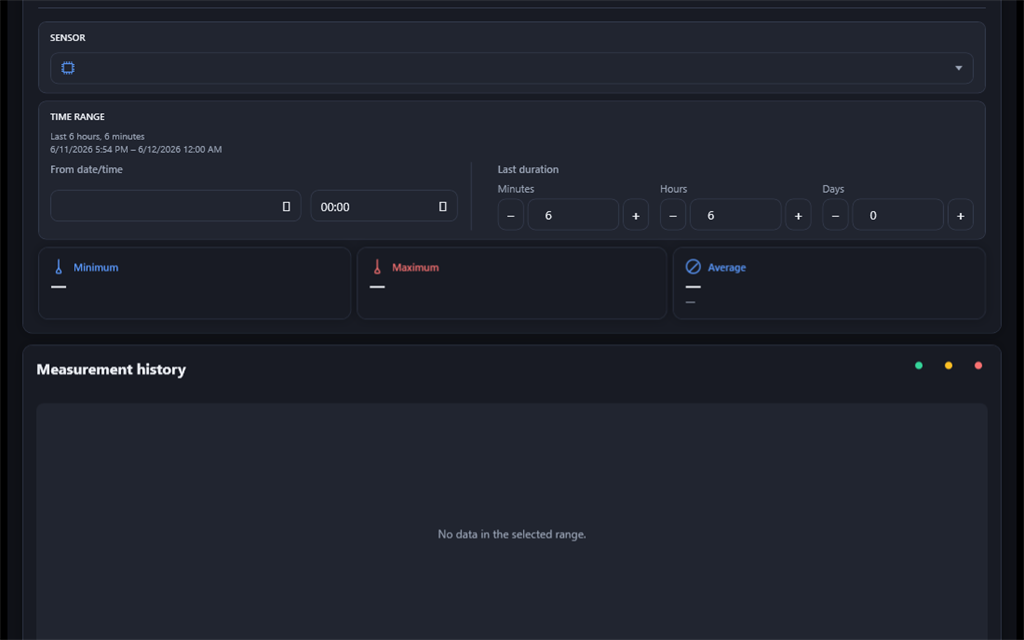
History shows stored measurements as a chart – provided “Save to DB” is enabled.
Open history
- Click History in the main window or press Ctrl+H.
- Or: double-click a sensor tile or “Open in history” from an alert.
Choose sensor and time range
- Select a sensor with stored data from the dropdown.
- Pick a time range: e.g. last 15 minutes, 1 hour, 24 hours or custom.
- Click Refresh to reload chart data.
Read the chart and zoom
- The curve shows the measurement history. Colored bands mark normal, warning and critical zones.
- Below the chart: Minimum, Maximum and Average for the visible range.
- Zoom: mouse wheel over the chart or drag to magnify a region (depending on view).
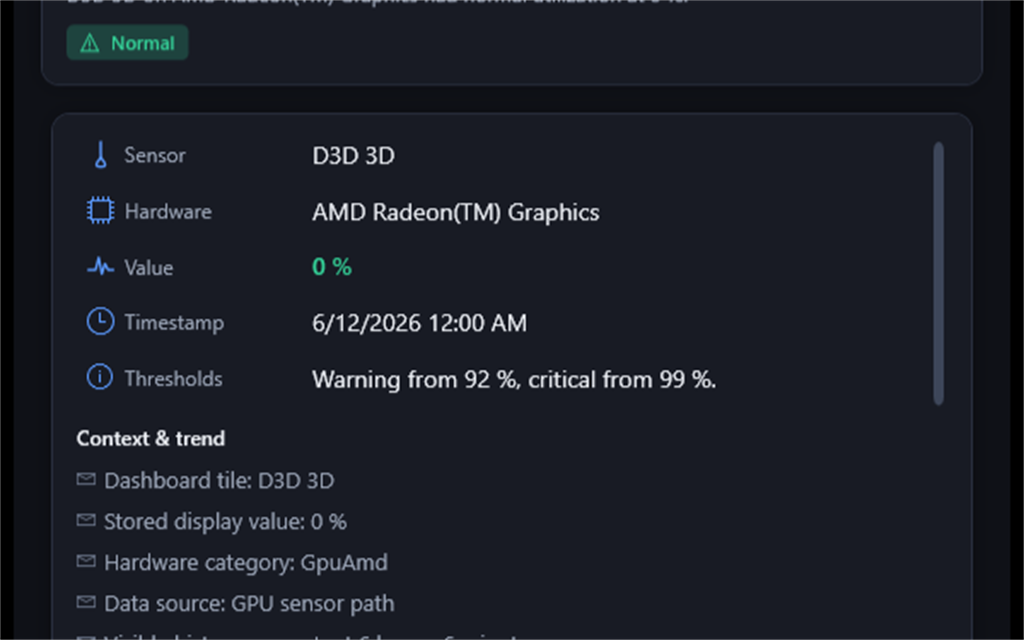
Reading details (double-click)
- Double-click a point on the chart.
- A detail window opens with explanation, assessment, recommended actions and thresholds.
- Section Context & Trend shows comparison values and trend (rising/falling/stable).
Ollama AI (optional)
- When Ollama runs locally (default:
http://127.0.0.1:11434, modelllama3.2), an AI analysis section appears. - Configure Start with Windows in the main window Settings.
- Without Ollama, built-in rule-based recommendations apply – the app works fully without AI.
8. Alerts & Warnings
SensorPulse monitors your thresholds and shows active warnings in the sidebar and detail windows.
Alert sidebar
- On the right of the main window you see “Active alerts & errors” when enabled in settings.
- Each entry shows sensor name, value and severity (warning or critical).
- Click an entry to open the detail window.
- When there are no alerts: “No active alerts – all clear.”
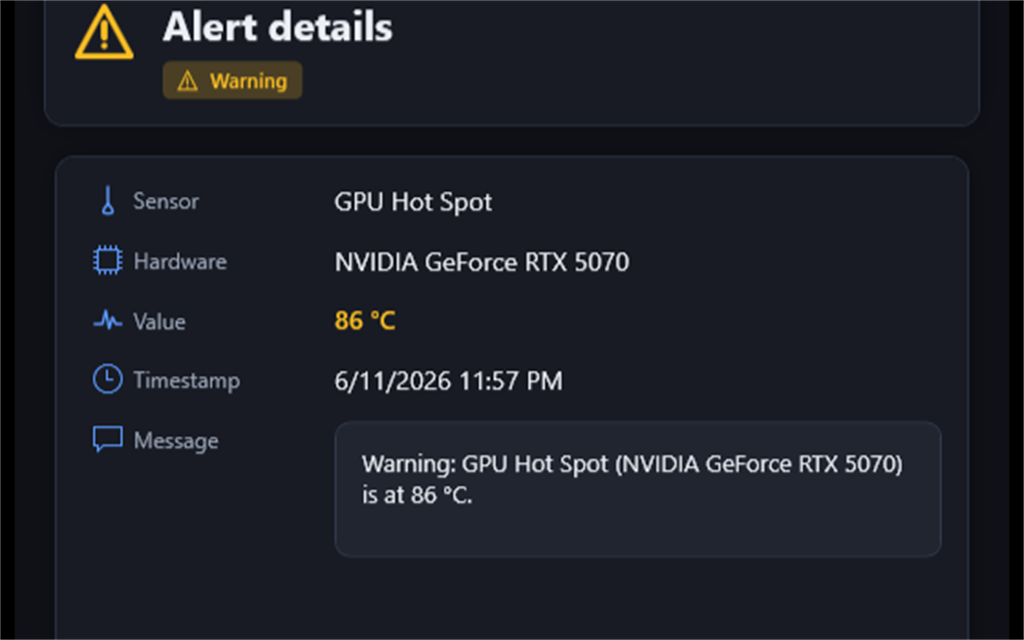
Detail window
The detail window shows:
- Sensor, hardware, measured value, unit, severity
- Timestamp, first seen, occurrence count
- Technical identifier and message text
- Open in history – jumps to the chart for this sensor
Adjust thresholds in Tools
- Open Tools in the main window.
- Go to the Alarm thresholds tab.
- Adjust warning and critical values per sensor type (temperature, load, fan, etc.).
- Click Save thresholds.
9. Tools Hub – Overview
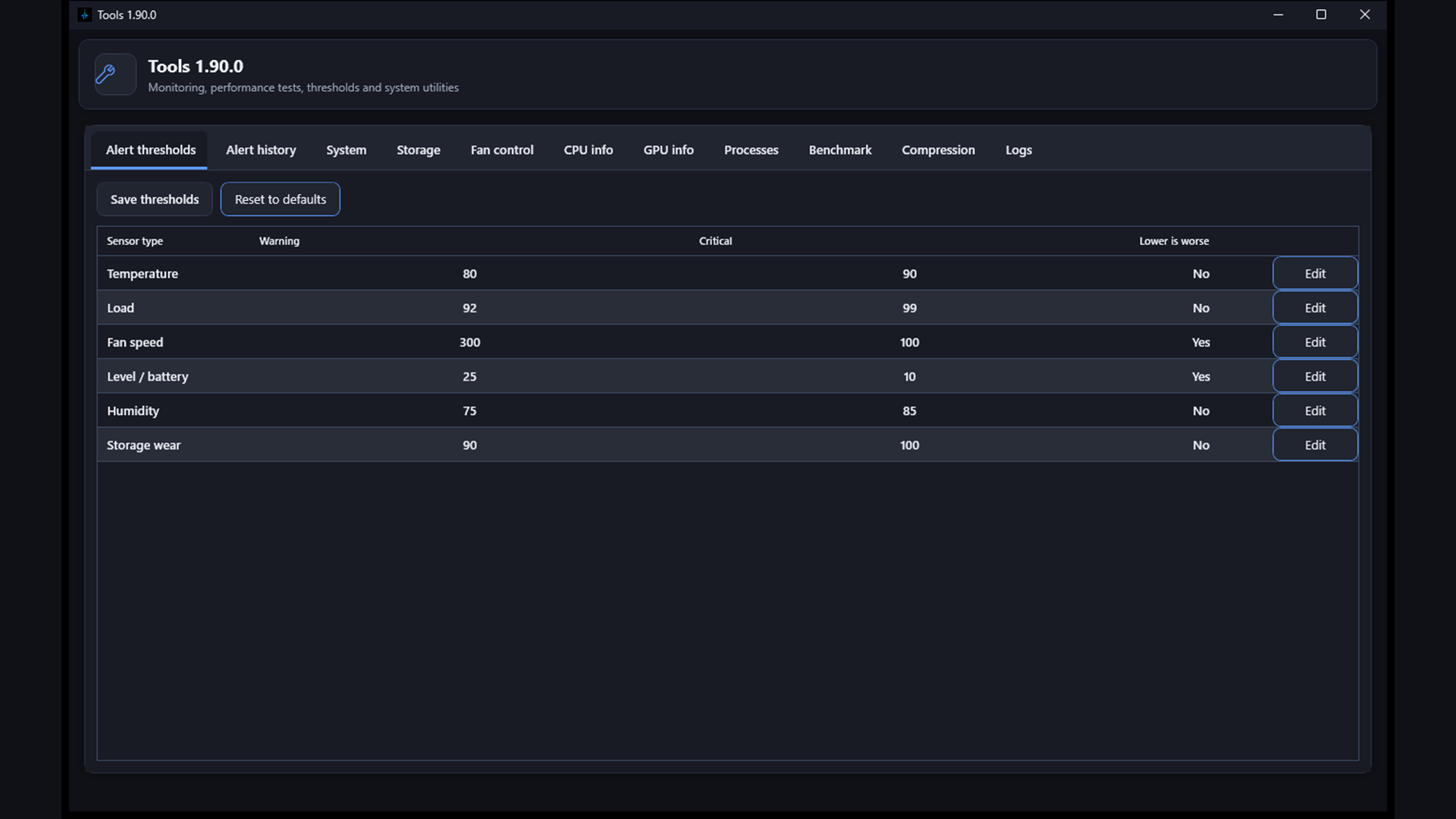
The Tools Hub bundles 10 specialized tabs in one window. Open it via the Tools button in the main window.
The following sub-chapters explain each tab in detail.
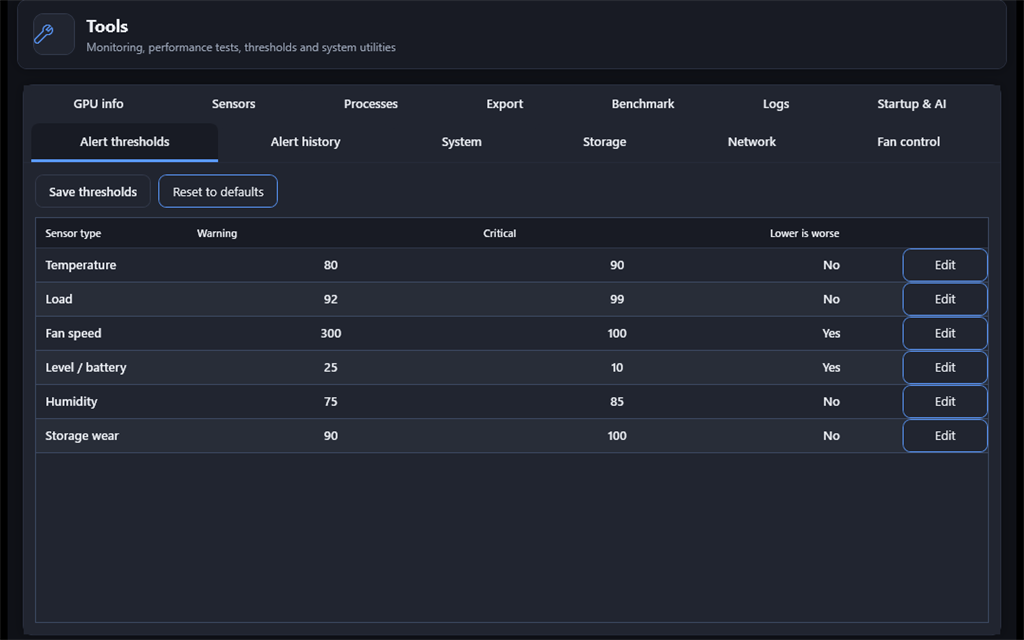
9.1 Alarm Thresholds
- Open Tools → Alarm thresholds tab.
- The table lists sensor types: temperature, load, fan speed, level/battery, humidity, storage wear.
- Double-click a row or click Edit to adjust warning and critical values.
- Lower is worse applies e.g. to fans (too low = bad) or battery level.
- Click Save thresholds to apply.
- Restore defaults resets all values to factory settings.
9.2 Alert History (7 / 30 / 90 days)
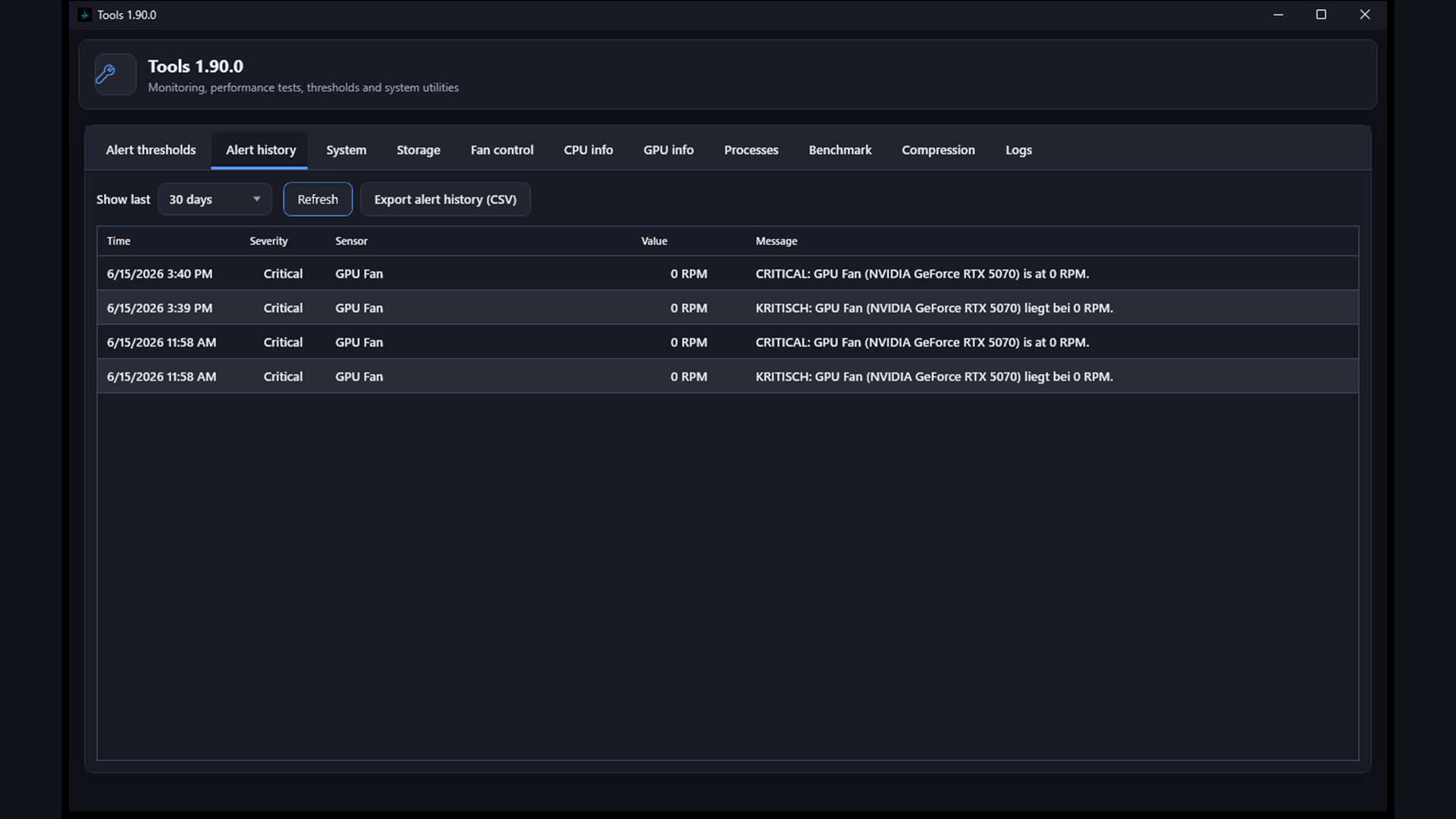
- Go to the Alert history tab.
- Choose the period: 7 days, 30 days or 90 days.
- The table shows time, severity, sensor, value and message for all logged alerts.
- Double-click an entry to open the alert detail window.
- When the table has more rows than fit on screen, a vertical scrollbar appears.
- Use Export alert history (CSV) to save the filtered list.
- Use this to spot recurring issues (e.g. regularly high CPU temperature).
9.3 System Overview
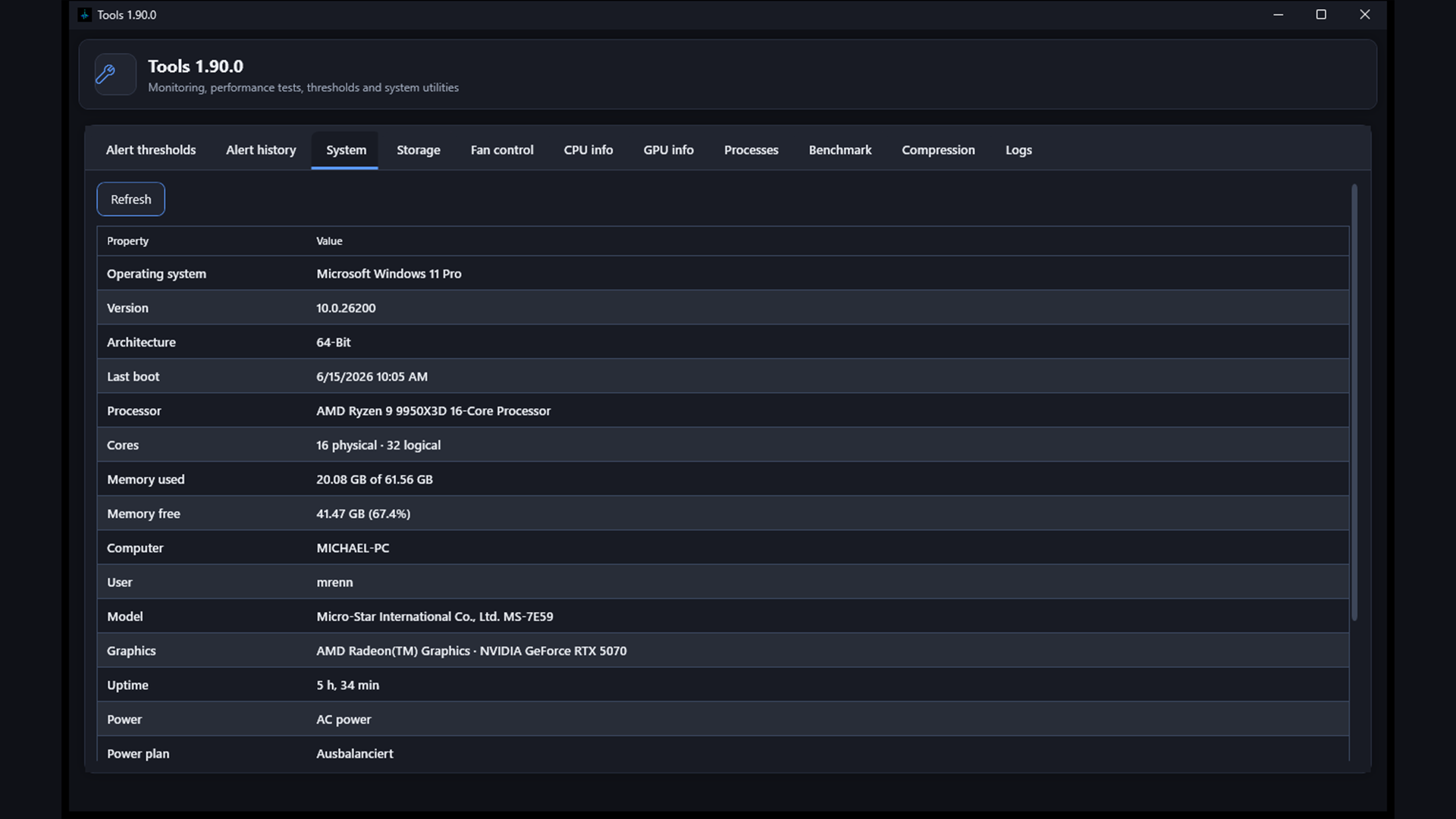
- Open the System tab.
- Read the table with OS, version, architecture, last boot, processor, cores, RAM, computer name, user, model, graphics, uptime, power source, power plan and disk health (since 1.10).
- Click Refresh to update values.
9.4 Windows Health Monitor
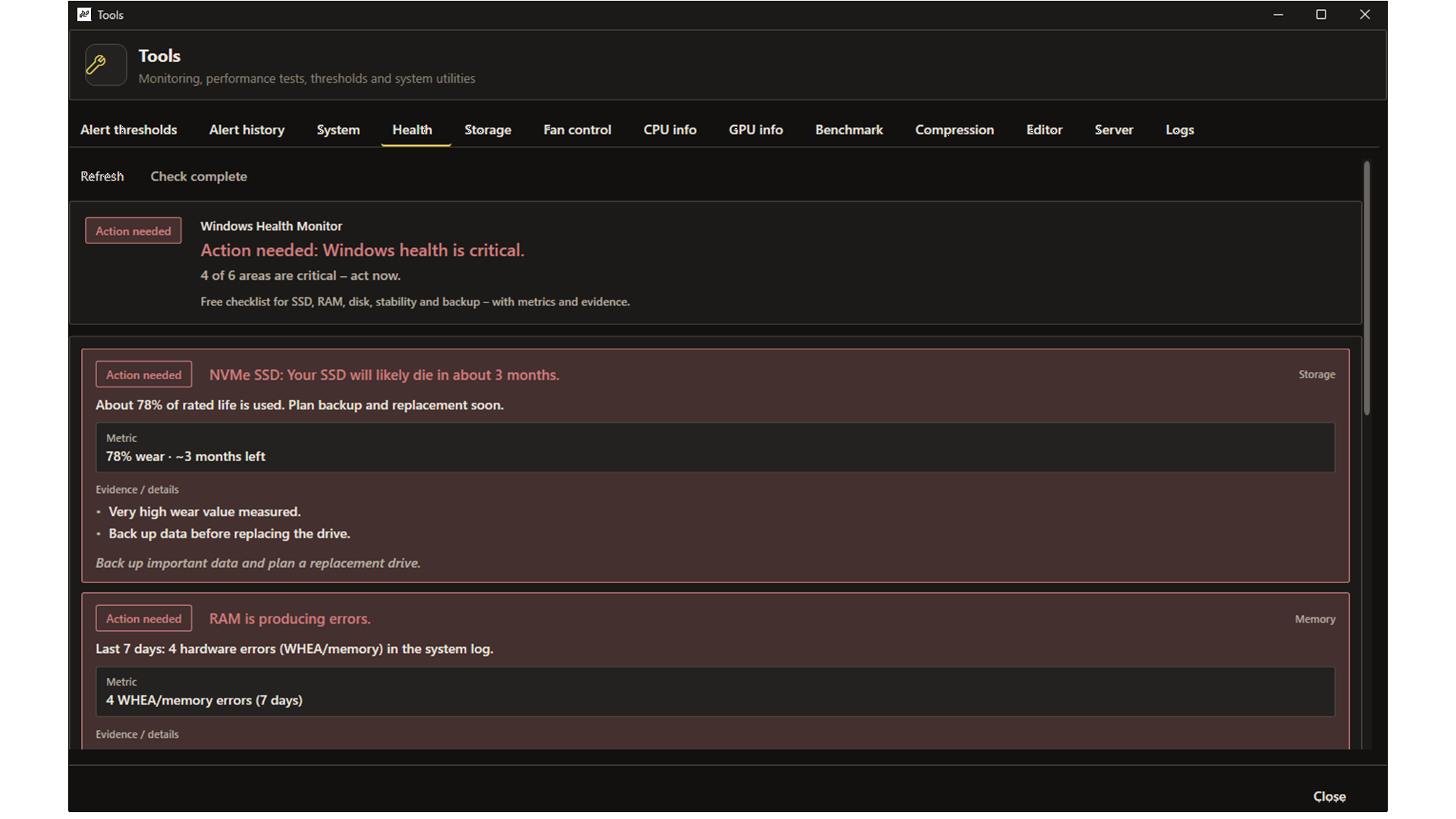
Free checklist in the Tools hub Health tab: plain-language warnings for SSD wear, RAM errors, disk issues, slowdowns and backup urgency – with metrics and evidence. No license required.
- Open the Tools hub and select the Health tab.
- The overview shows overall status and every checked area (including “OK”).
- Each entry lists headline, detail, metric, evidence and an action hint.
- Refresh re-runs the check (event logs, wear sensors, memory load).
9.5 Storage – Drives & Top-100 Scan
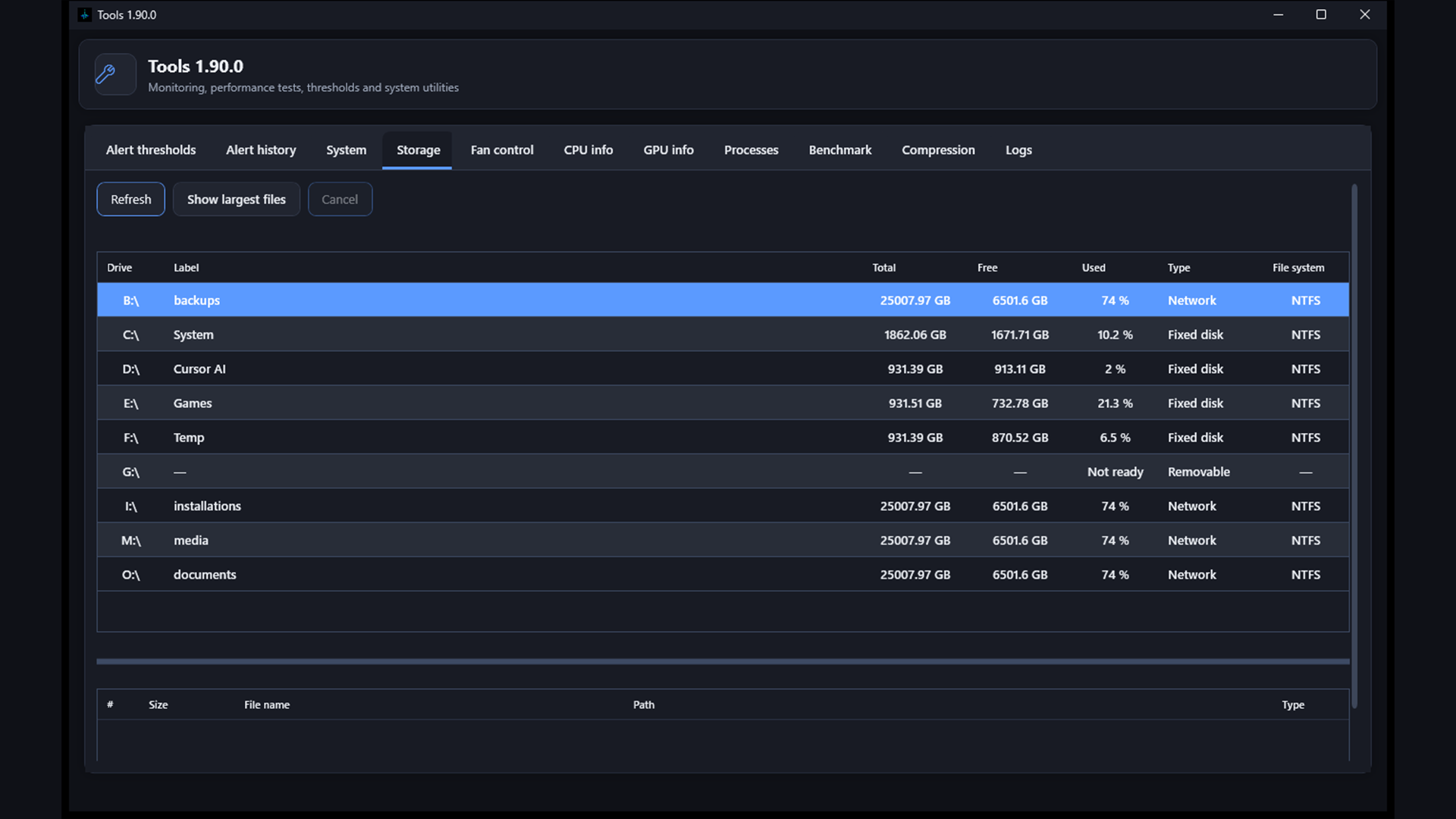
Drive overview
- Open the Storage tab.
- See all drives with label, total/free/used space, type and file system.
Scan top 100 largest files
The scan works on the selected drive regardless of file system – e.g. NTFS, exFAT, FAT32, ReFS or other Windows-supported formats. SensorPulse automatically picks the fastest enumeration for the detected format.
- Select a drive in the list.
- Click Show largest files.
- Wait until the scan completes (progress is shown).
- Results show size, file name, path and extension of the largest files.
- Double-click a row to open the location in Explorer.
- Right-click a row → Compress as ZIP submenu with all levels (store, fast, normal, maximum), then save the archive.
- Use Cancel to stop a running scan.
Folder treemap
The WinDirStat-style treemap is included in the free edition. The scan runs in parallel on the first directory levels and skips Recycle Bin, System Volume Information and reparse points.
- Click Scan folder treemap (or the matching button on the Storage tab).
- Click a rectangle to drill into a folder. Clicking a file opens Explorer with that file selected.
- Use Up one level to go back.
9.6 Fan Control
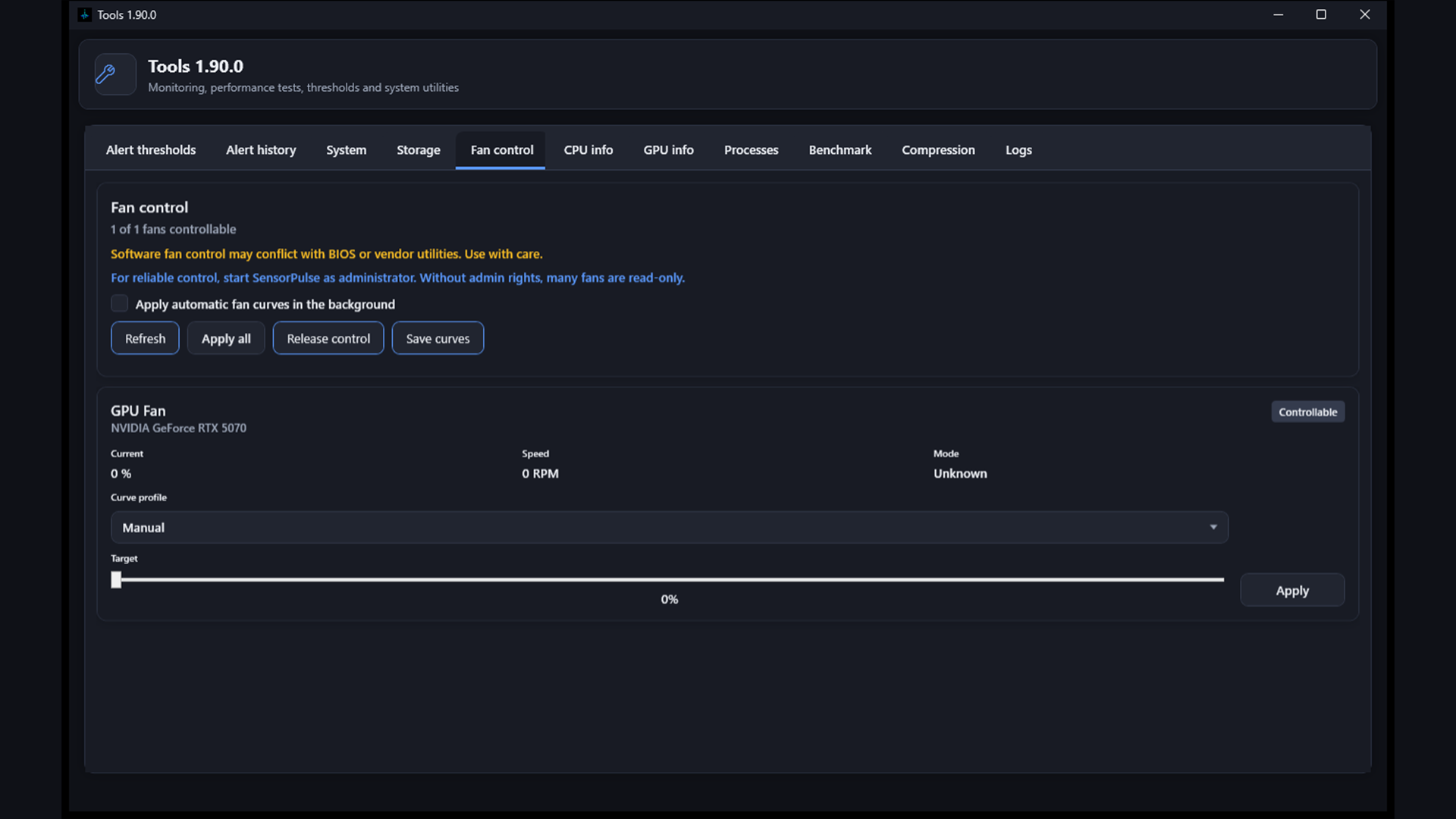
- Open the Fan control tab.
- Select a controllable fan from the list (not available on all systems).
- Drag the slider to the desired speed percentage.
- Click Apply to set the speed.
9.7 CPU Info
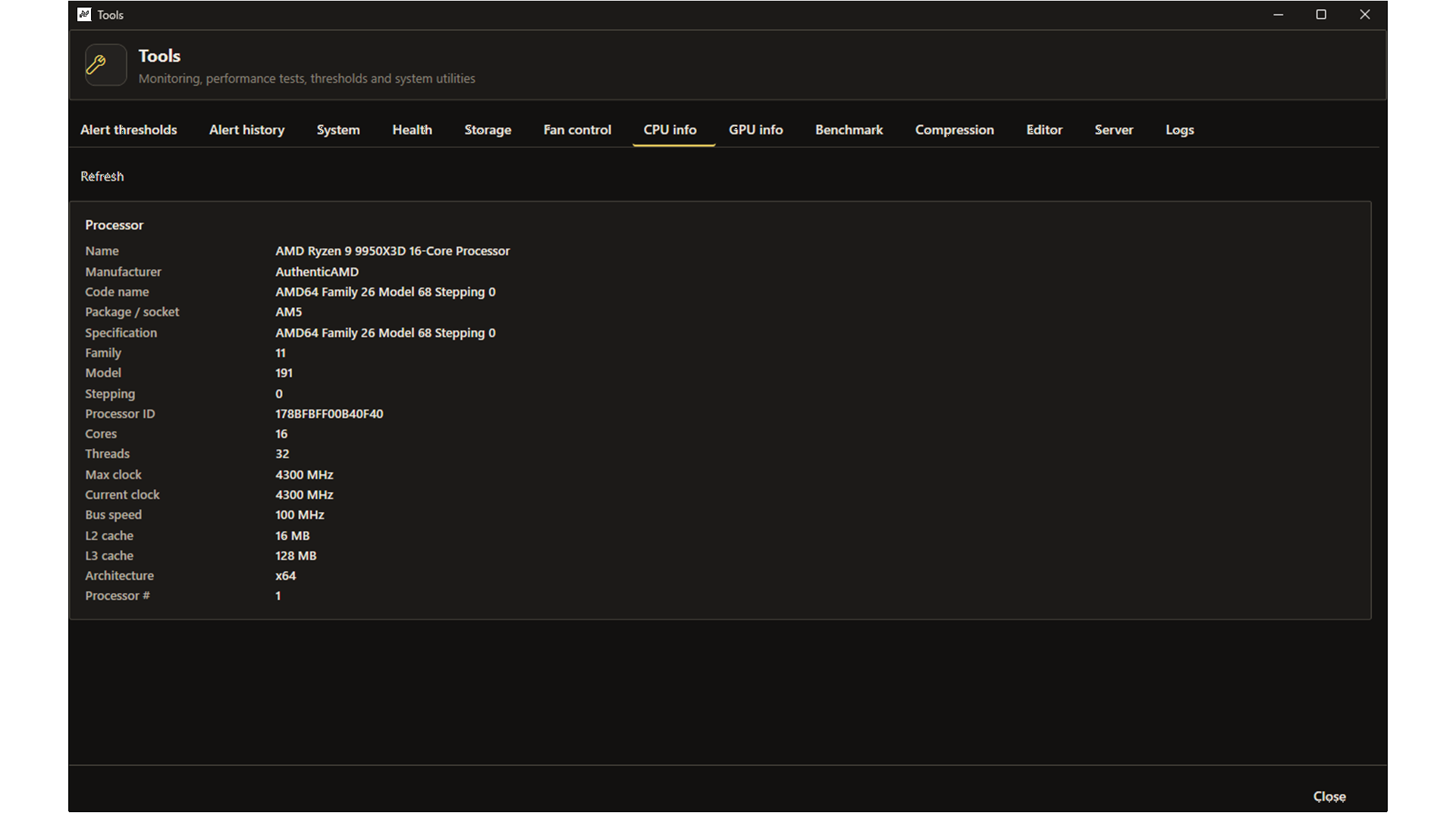
- Open the CPU info tab.
- See processor name, architecture, cores, clocks, cache, socket and more in a compact processor overview.
- Click Refresh after hardware or driver changes.
9.8 GPU Info Panel
- Open the GPU info tab.
- See name, type, driver version, VRAM (total and used), graphics processor and bus/PNP ID.
- Multiple GPUs get separate panels.
- Without a detected GPU you see “No GPU detected”.
9.9 Benchmark – performance & stress tests
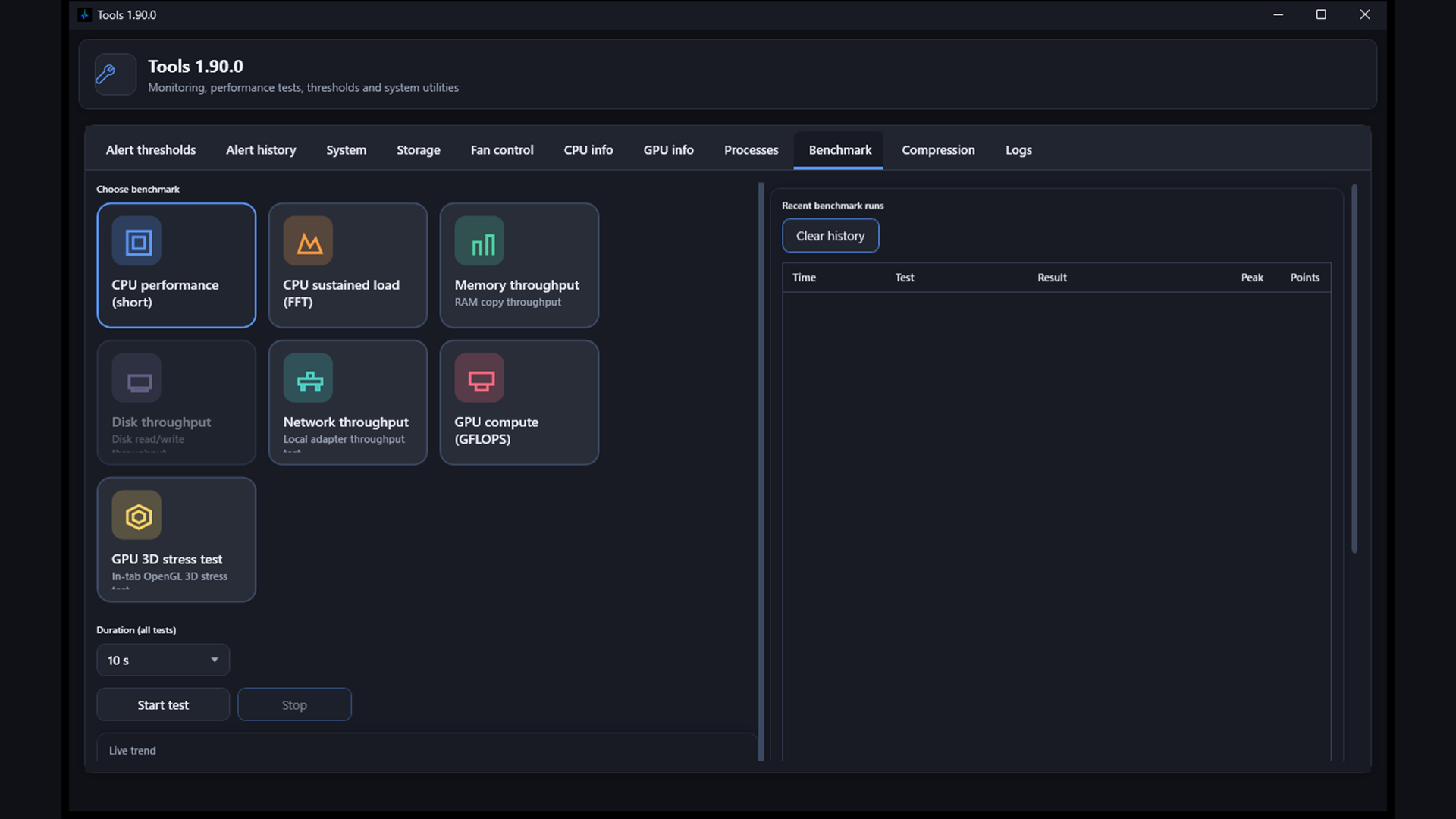
- Open the Benchmark tab.
- On the left choose test type: short CPU performance, CPU sustained load (FFT), RAM, disk, network throughput, Ping (ICMP), GPU compute or GPU 3D stress test.
- For CPU sustained load: small FFT or large FFT. For network: pick a connected adapter (on start the first active adapter is pre-selected). Ping: enter a host — no Enterprise unlock required. For GPU 3D optionally enable lite mode.
- Set duration (10–300 seconds) – your choice is saved and pre-filled next time you open tools.
- Click Start test.
- Live charts and status appear on the left; on the right a wider history table with time, test, result, peak and SensorPulse points.
- Double-click a history row to open a detail window with duration, profile, peaks and points.
- When there are many entries the history table scrolls vertically. Click Stop to cancel early.
9.10 Compression – create & extract ZIP
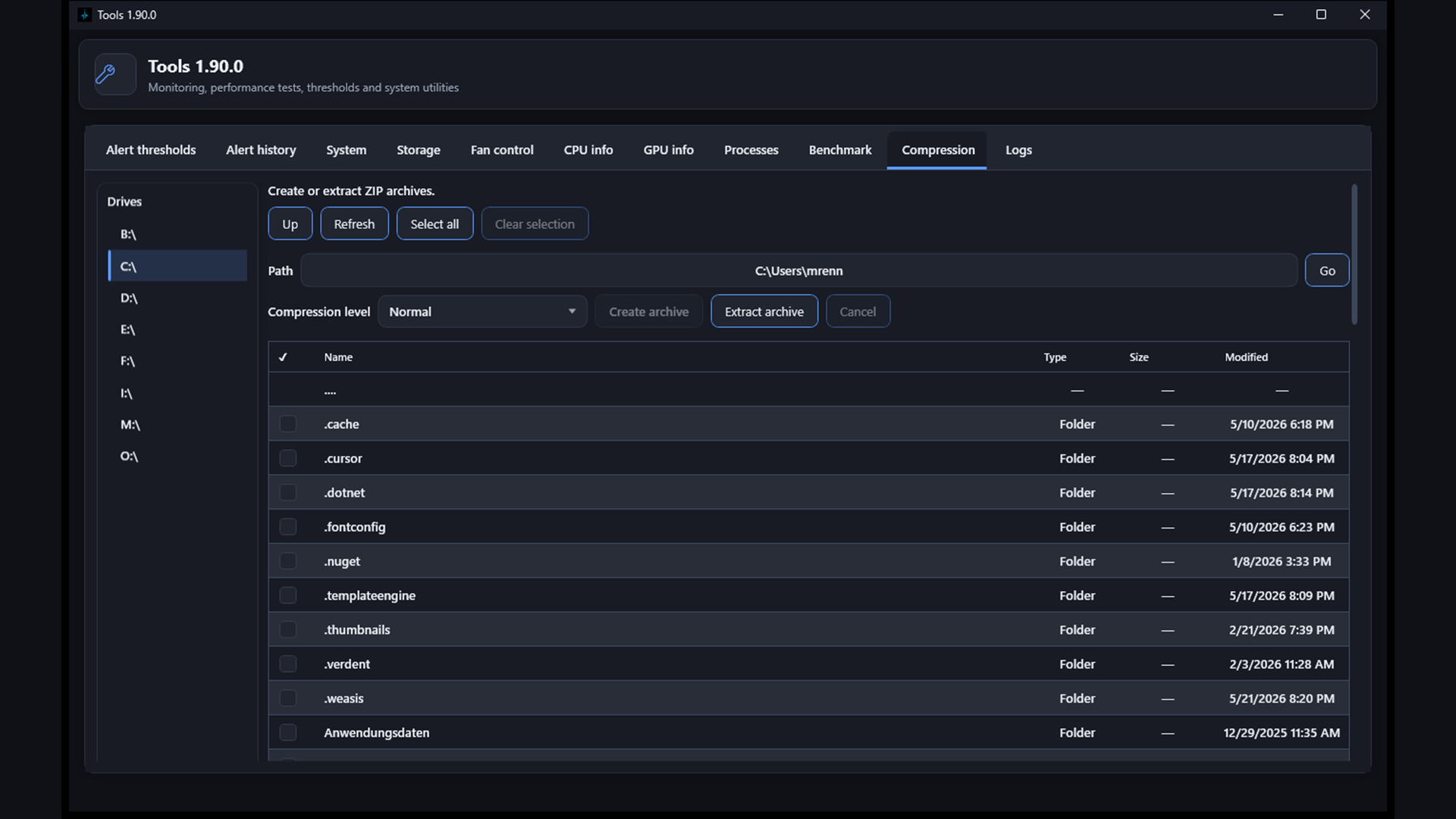
- Open the Compression tab.
- Select a drive on the left, browse folders on the right and check files or folders.
- Choose a compression level: store, fast, normal or maximum.
- Create archive packs the selection into a ZIP file (default name from the first selected item).
- Extract archive unpacks a ZIP file into the current folder.
- Alternatively: after a top-100 scan in the Storage tab, right-click a file to compress directly (same four levels).
9.11 Logs
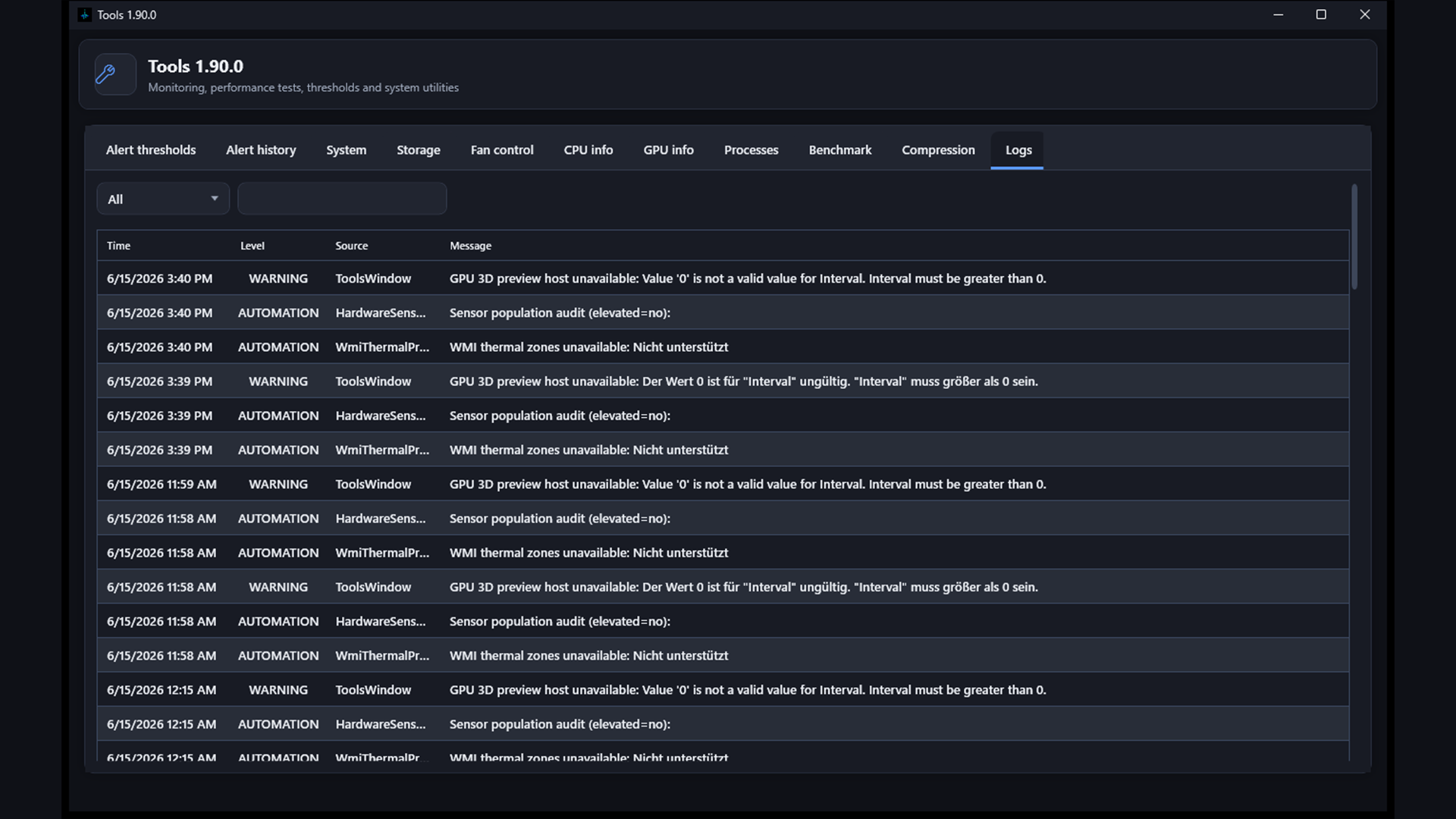
- Open the Logs tab.
- Read application and error logs from files next to the executable.
- Filter by level and search text; Refresh reloads the current session.
10. Task Manager
The built-in Task Manager shows all running processes with performance charts and extensive actions. The integrated task manager the process list appears quickly via WMI pre-load – CPU values and detail fields are filled in the background afterward.
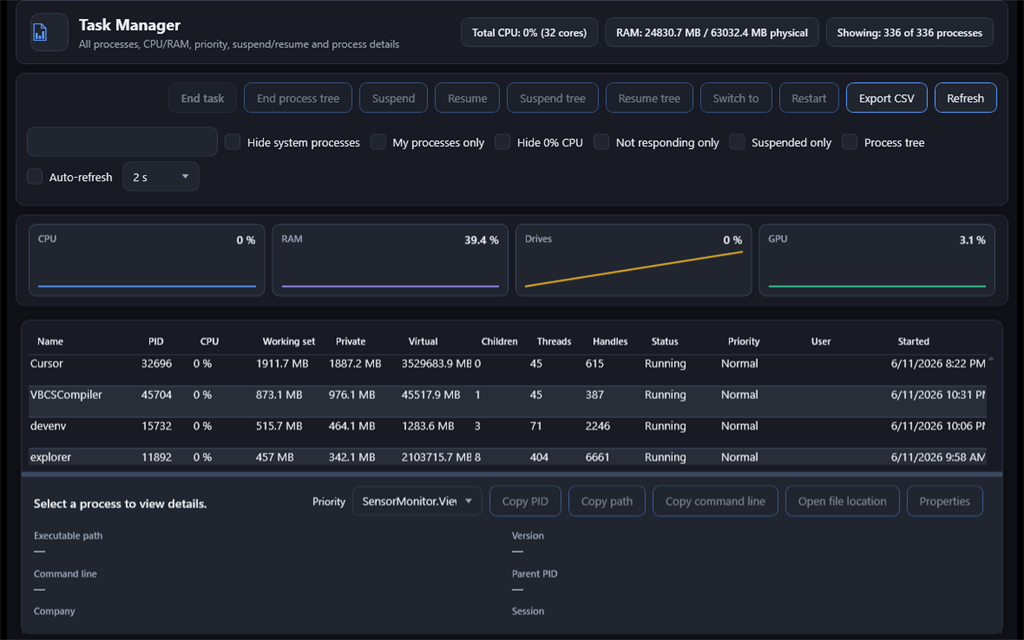
Open Task Manager
- Click Task Manager in the main window.
- The window loads all processes and shows performance sparklines for CPU, RAM, disks and GPU at the top.
Performance charts
Four sparkline cards show current CPU, memory, disk and GPU utilization in percent.
Performance details (CPU, memory, disk, network, GPU, startup)
From the sparkline cards or toolbar you open a separate window like Windows Task Manager. Pick a resource on the left; on the right you see the main chart, stats and – for CPU and disk – per-core or per-volume mini charts. Under Startup apps you manage startup programs like Windows Task Manager.
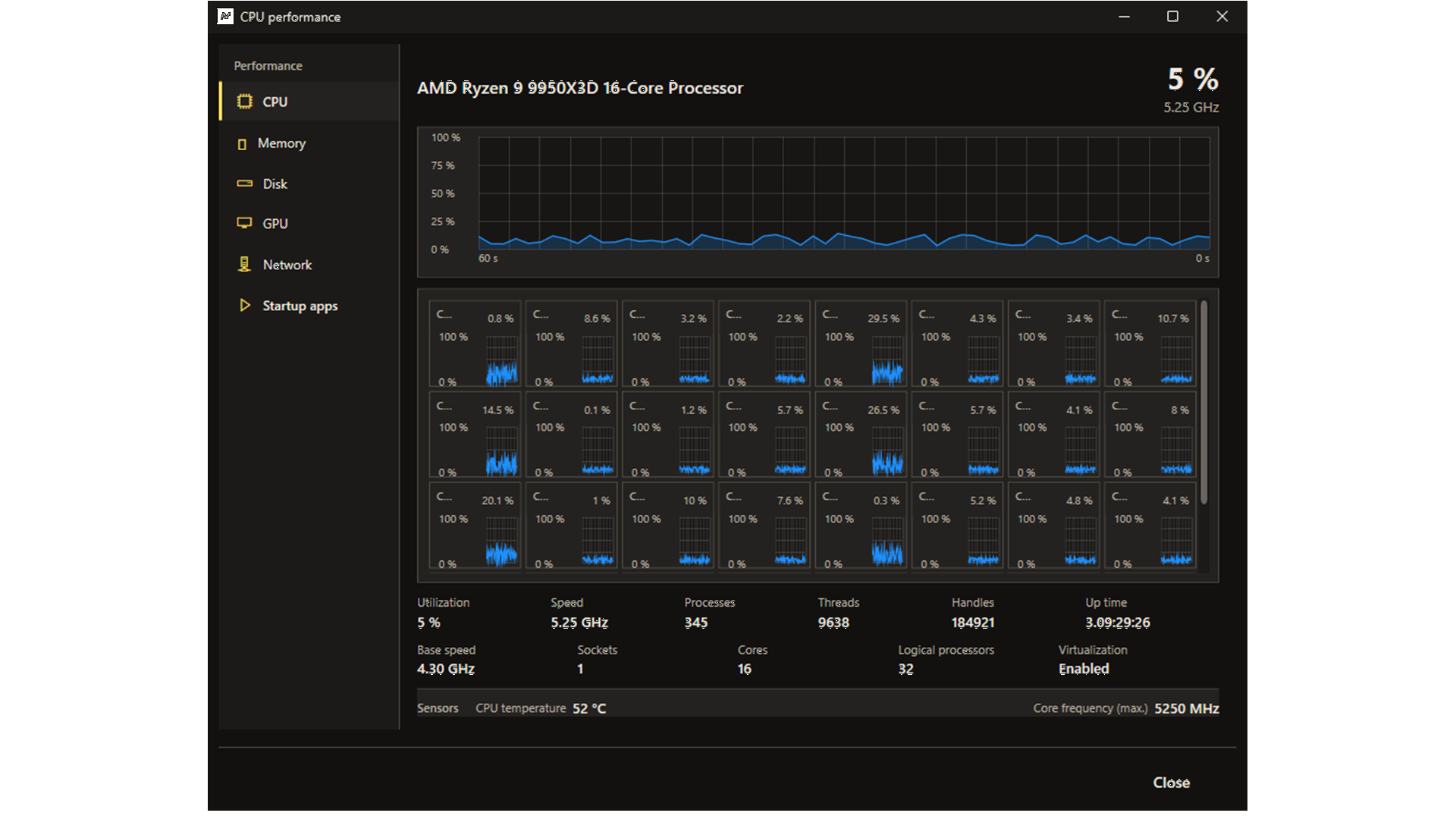
- CPU: utilization per logical processor, clock, temperature and processor identity
- Memory: usage, commit, cached/available totals
- Disk: activity per volume with drive letter and hardware name
- Network: throughput per adapter
- GPU: utilization and memory like Windows Task Manager
- Startup: enable/disable startup programs, copy command, open location, Windows startup settings. Filter chips: Registry (including Wow6432Node), folder, scheduled tasks, WMI (read-only)
Filter the process list
- Use the search box to filter by name, PID, path or user.
- Enable filters: Hide system processes, My processes only, Hide 0% CPU, Not responding only, Suspended only.
- Summary shows: “Showing: X of Y processes”.
Process actions
Select a process and use the buttons:
- End task – Terminates the selected process (with confirmation).
- End process tree – Ends the process and all child processes.
- Suspend / Resume – Pauses or resumes the process.
- Suspend tree / Resume tree – For process and children.
- Switch to window – Brings the process main window to the foreground.
- Restart – Ends and restarts the process.
- Properties – Opens Windows file properties.
- Export CSV – Saves the current process list.
Detail panel
At the bottom you see details for the selected process: path, command line, company, description, version, parent PID, session, architecture, total CPU time and responding status.
Change priority
- Select a process.
- Use the Priority dropdown: Idle, Below normal, Normal, Above normal, High, Realtime.
11. SQL Admin & Automation (local, free)
SQL Admin is included in the free edition and works on the local sensordata.db database. SQL Server and Oracle are Enterprise-only. Protected against manipulation.
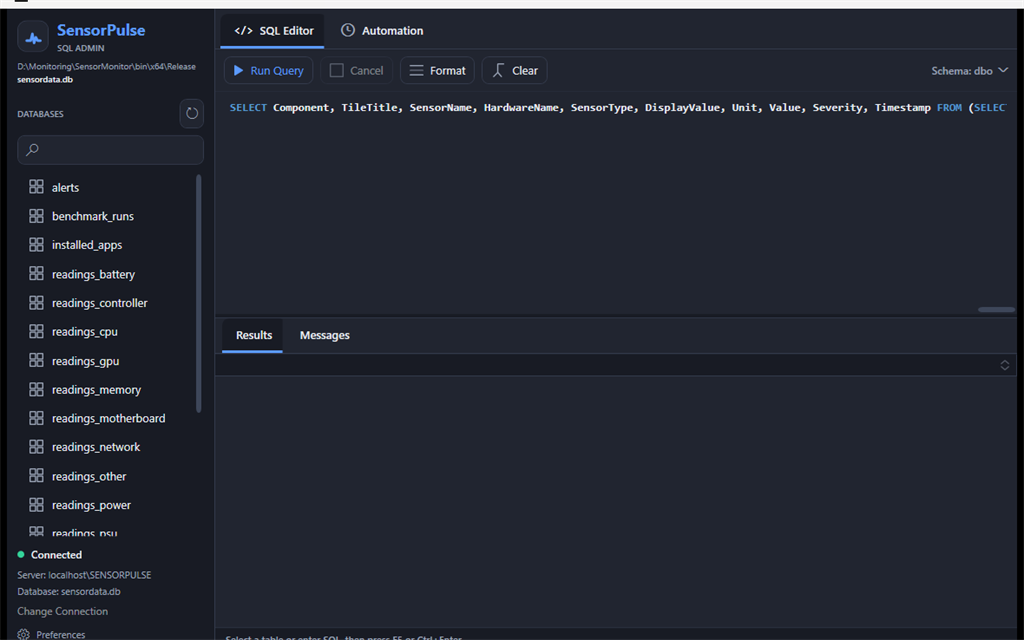
Open SQL Admin
- Click SQL Admin in settings or the header.
- Left: database tables; right: SQL editor.
Tables
Readings are stored in component tables: readings_cpu, readings_gpu, readings_motherboard, readings_memory, readings_storage, readings_network and more. Plus alerts and settings.
Run SQL
- Click a table in the sidebar to load a sample
SELECTquery. - Edit the SQL or write your own query.
- Click Run query or press F5 / Ctrl+Enter.
- Zoom the query field font: Ctrl + mouse wheel, Ctrl++/−, reset with Ctrl+0.
- A progress overlay shows the workflow: prepare → execute on database → read results → display in grid.
- Results appear in the Results tab; messages in Messages.
- Scroll only in the results area – editor and toolbar stay fixed. Large queries without
LIMITare capped at 3,000 rows automatically.
Security & allowed commands
SQL Admin is protected against manipulation:
- Allowed:
SELECT,EXPLAIN, read-onlyPRAGMA,INSERT,UPDATE,TRUNCATE - Blocked: schema and database commands such as
DROP,ALTER,CREATE,VACUUM,DELETE, etc. - Blocked commands are shown in the Messages tab – it switches automatically on violations.
Automation
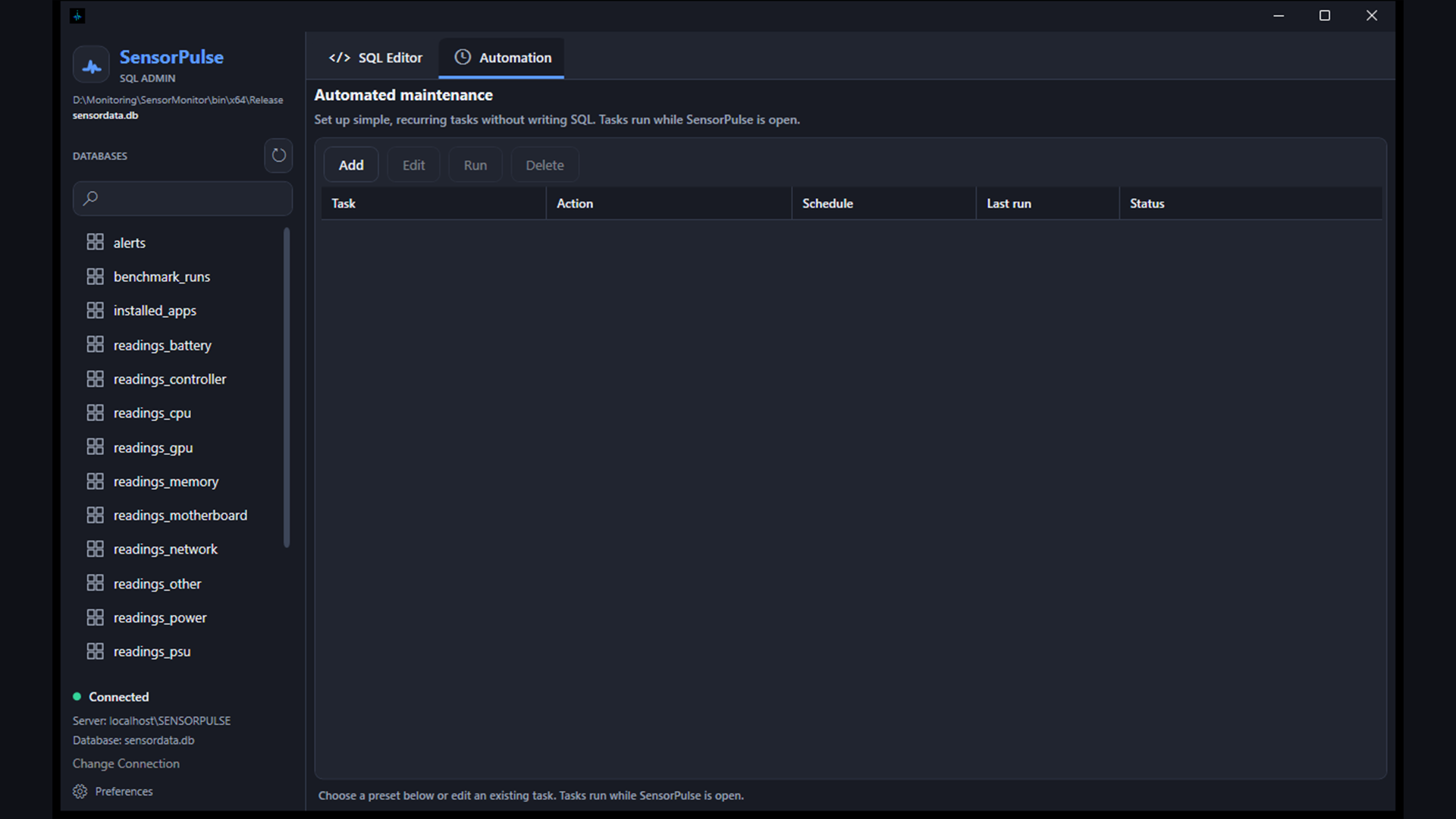
Switch to the Automation tab:
- Create scheduled tasks: Delete old data, Backup database (→
backupsfolder), Optimize database (VACUUM). - Schedule: Daily at fixed time, Every N hours or On program start.
- Use Add task, Edit, Run now and Delete.
12. License – Free vs Enterprise
Free edition
You do not need a key. All consumer features (including SQL admin on SQLite, treemap, task manager, overlay) are free. Legacy SPUL keys are still recognized but no longer unlock a second paid tier.
SensorPulse Enterprise
For fleets, server tools, remote databases and Prometheus /metrics there is the separate product SensorPulse Enterprise (SKU SPEL-ENT-599, €599 one-time, 30-day trial). Downloads and manuals are on the download page. Keys use the format SPEL-… and are entered in the Enterprise console – not in the consumer app.
13. Game Overlay – Hotkey Ctrl+Shift+O
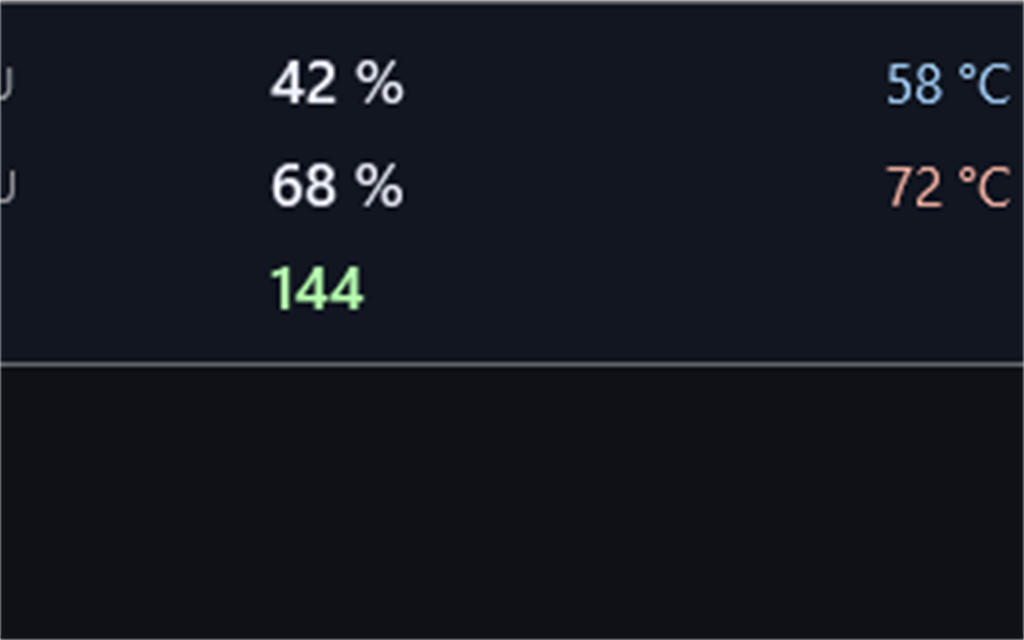
The transparent overlay shows CPU/GPU load, temperatures and FPS over all applications – ideal for gaming.
Enable overlay
- Open Settings and enable Transparent game overlay.
- Or press Ctrl+Shift+O anytime to toggle the overlay.
- Tray icon: right-click → Toggle game overlay.
Understanding the overlay
- The window sits top right and is click-through – you can play underneath.
- It shows CPU %, GPU %, temperatures and FPS (when available).
- Starting a game from the Programs tab auto-enables the overlay.
14. Keyboard Shortcuts
| Shortcut | Action |
|---|---|
| F1 | Context-sensitive help for current screen |
| Ctrl+P | Start / pause monitoring |
| Ctrl+H | Open history window |
| Ctrl+F | Focus sensor search |
| Esc | Clear search or severity filter; close settings |
| Ctrl+S | Save screenshot of active window |
| Ctrl+Shift+O | Toggle game overlay on / off |
| F5 / Ctrl+Enter | Execute SQL query (SQL Admin) |
| Ctrl+mouse wheel / Ctrl++/− | Zoom SQL query field |
| Ctrl+0 | Reset SQL zoom |
15. Troubleshooting & FAQ
No or too few sensors shown
- Start SensorPulse as administrator (Settings → Run as administrator).
- Enable Show inactive sensors in settings.
- On AMD CPUs: install PawnIO and restart as admin.
- Some laptops report fewer sensors than desktops – this is hardware-dependent.
History is empty
- Enable Persist readings to sensordata.db in settings.
- Start monitoring and wait a few minutes.
- Check data retention – very short periods delete old data quickly.
Optional Enterprise later
- For company fleets: download SensorPulse Enterprise separately (SPEL key, €599 one-time).
- The free consumer app stays fully usable without a purchase.
Error log (errors.log)
Technical errors are logged automatically at:
logs\application\errors.log (in the SensorPulse data folder next to the EXE)
- Open the SensorPulse installation folder.
- Navigate to
logs\application\. - Open
errors.logwith a text editor when contacting support.
App won't start or crashes
- Check that .NET Framework 4.8 is installed.
- Try running as administrator.
- Remove older versions and extract the ZIP again.
- Read
errors.logfor details.
More help
Press F1 in the app for context-sensitive help. Visit sensorpulse.de for downloads, FAQ and contact.