SensorPulse Companion – Setup
Dashboard & alerts from your own phone – read-only, no remote control
Version 1.92.0 · Windows 10/11 (64-bit)Coming soon: The SensorPulse Companion app (Android/iOS) will appear in the app stores. PC setup (remote access, QR code, firewall helper) is already included in SensorPulse – you can prepare now.
Security: Remote access is off by default. Enable it only on your home network or over VPN. Do not expose the API port to the public internet.
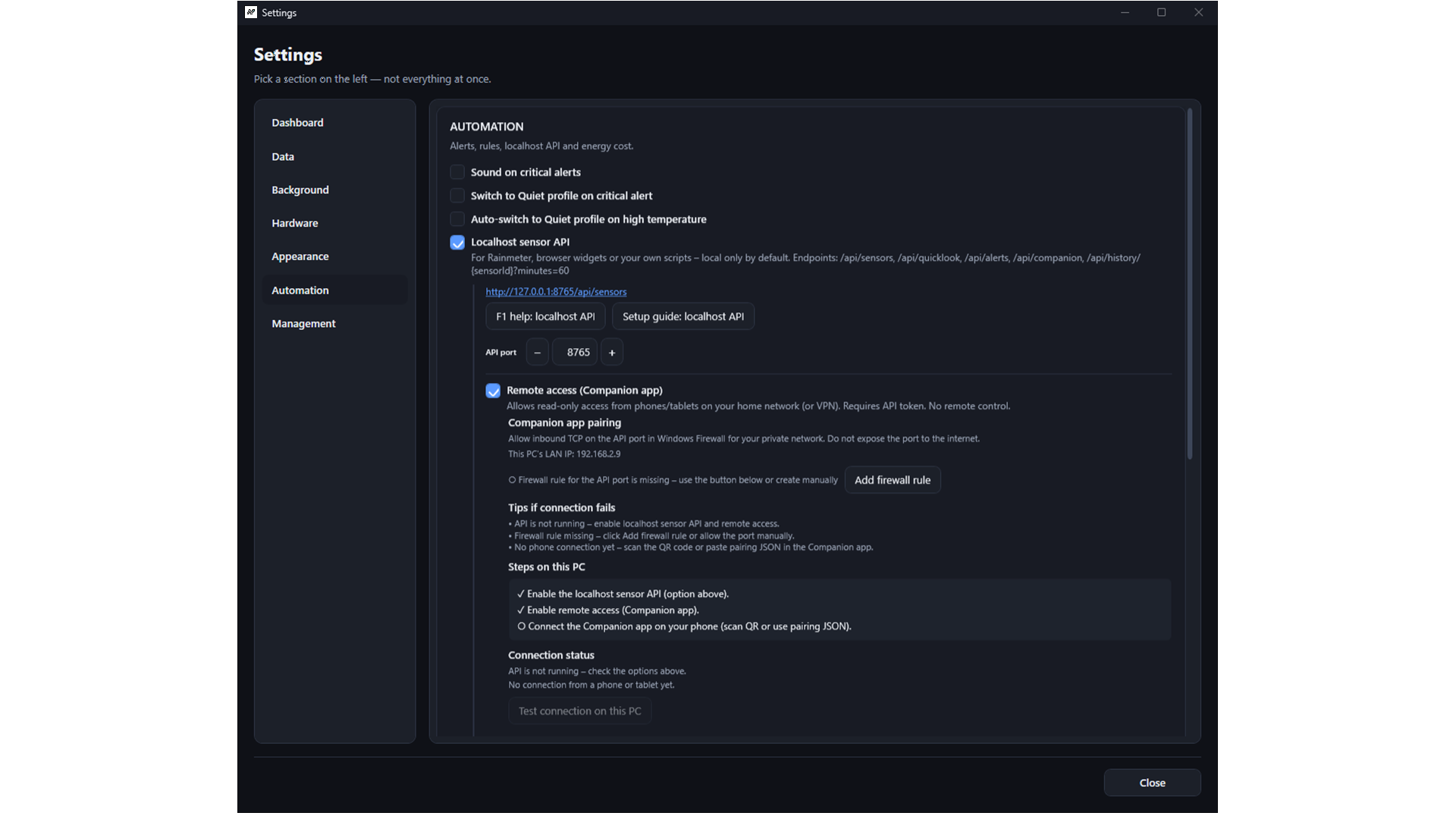
Overview
- Run SensorPulse on the PC (Windows 10/11, 64-bit)
- Enable Settings → Automation → Localhost sensor API
- Enable Remote access (Companion app)
- Windows Firewall: allow inbound TCP on the API port (default 8765) for private networks – Add firewall rule or create manually
- Companion app: scan QR code (recommended) or paste pairing JSON
On the PC – step by step
1. Enable the API
Open Settings → Automation, check Localhost sensor API, keep port 8765 or choose another (1024–65535).
2. Enable remote access
Check Remote access (Companion app). SensorPulse listens on your LAN IPs (e.g. 192.168.1.42), not only 127.0.0.1. The pairing area shows QR code, pairing JSON, LAN IP and firewall status.
3. Windows Firewall
Use Add firewall rule in Settings (administrator confirmation) or create an inbound TCP rule for port 8765 on the Private profile only.
4. Pairing JSON
{
  "v": 1,
  "name": "GAMING-PC",
  "host": "192.168.1.42",
  "port": 8765,
  "token": "…long secret…"
}
Companion app (phone)
- Open SensorPulse Companion (coming soon to app stores)
- Tab PCs → Add PC
- Scan QR code (recommended) or paste pairing JSON
- Test connection → Save
- Tabs Dashboard / Alerts – pull to refresh or wait ~20 s
Scenarios
Same Wi‑Fi
host must be the PC’s IPv4 address (not 127.0.0.1).
On the go via VPN
Use Tailscale or WireGuard – set host to the PC’s VPN IP.
Troubleshooting
| Issue | Fix |
|---|---|
| Connection failed | SensorPulse running? API + remote on? Same Wi‑Fi/VPN? Firewall? |
401 unauthorized | Wrong token – copy fresh pairing JSON |
| QR not scanned | Paste JSON manually |
What the Companion app cannot do
- No remote control: no profiles, fans, overlay or SQL admin
- No monitoring without SensorPulse running on the PC
See also: Localhost API reference · Press F1 in the Companion section of Settings in the app.